

To start page numbering from a specific page in Word, you need four steps. Click at the very beginning of the Introduction (or whichever page should carry the first number) and insert a section break in front of it: on the Layout tab, click Breaks and choose Next Page. Then double-click the footer on that page and switch off the Link to Previous button. Finally, insert the number via Page Number and Bottom of Page. The title page, abstract and table of contents stay unnumbered, and the numbering runs from the Introduction onwards. The same method works for any page, not just the Introduction.
Below we walk through the whole process step by step, with screenshots. The screenshots show the Slovak edition of Microsoft 365, but the ribbon layout and button positions are identical in every language, and each button is named in English in the text. Word 2021, 2019 and 2016 look almost the same, and the buttons carry the same names.
Why Word numbers the title page too
By default, Word treats the document as one continuous block. The footer (the bottom margin area) is linked across all pages, so once you insert a page number, it appears everywhere, from the title page to the appendices.
Universities usually want something different: pages may be counted from the title page, but no number should be visible on the front matter. The title page, acknowledgements, abstract and table of contents belong to the thesis, yet they should not display a number. Always check your university's or department's thesis guidelines for the exact rules; we cover them in more detail in our thesis formatting guidelines.
To split the numbering, you have to divide the document into two sections: the first holds the unnumbered front matter, the second holds the rest of the thesis with numbers. That is exactly what a section break does, together with one easily overlooked button in the footer settings.
Step 1: Click at the start of the chapter where numbering should begin
Click just before the first letter of the Introduction heading (or of whichever page you want the numbering to start on). The cursor has to blink right in front of the heading.
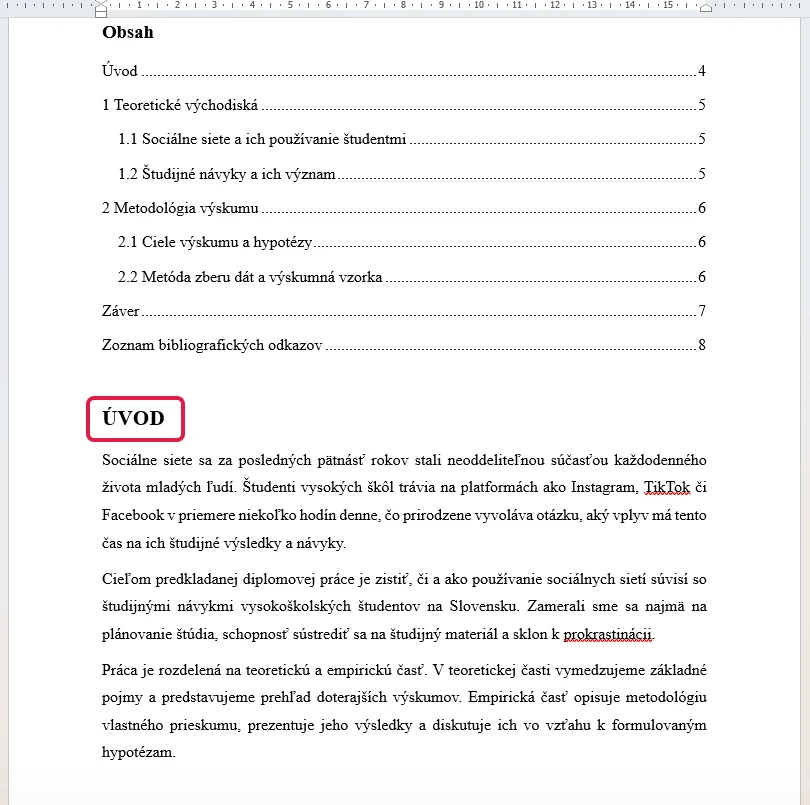
One small but important detail: if you previously pushed the Introduction onto a new page with a manual page break (Ctrl + Enter), delete it with Backspace. The Introduction will temporarily stick to the table of contents, which is fine. The section break we insert in the next step replaces it completely. If you leave both breaks in, you end up with a blank page in your thesis.
Step 2: Insert a section break
On the Layout tab, click the Breaks button. In the menu that opens, move down to the Section Breaks group and pick Next Page.
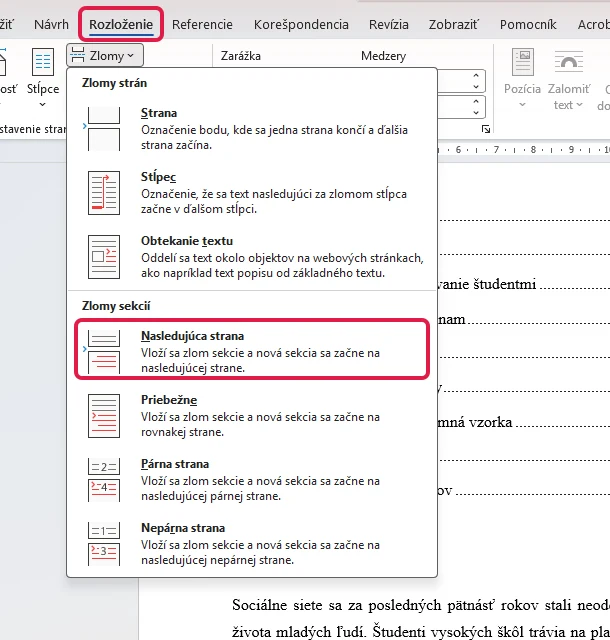
The Introduction moves to a new page, and from this point the document is split into two sections. On the surface everything looks like an ordinary page break; internally, Word now knows that the front matter and the rest of the thesis are two separate units.
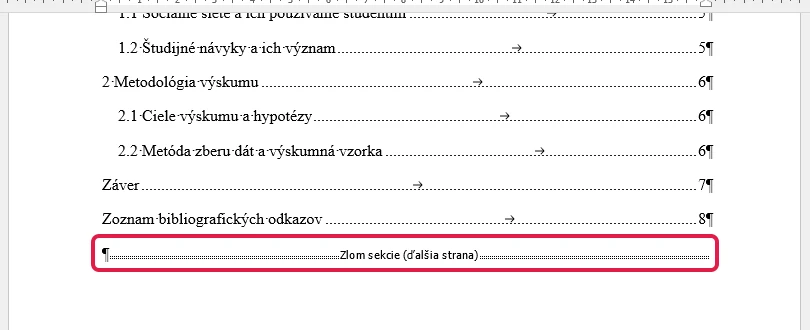
To check that the break really went in, click ¶ (Show/Hide) on the Home tab. At the end of the page before the Introduction you will see the "Section Break (Next Page)" mark.
Step 3: Open the footer and unlink the sections
Double-click the bottom margin of the page where the Introduction starts. Footer editing mode opens, and on the left edge you will see the label Footer -Section 2-. On the right, notice the Same as Previous tag: that is what tells you the second section's footer still copies the first one.

At the same time, the Header & Footer contextual tab appears on the ribbon. Click the Link to Previous button on it so that it is no longer highlighted. The "Same as Previous" tag disappears from the footer, and from this moment the footers of the two sections are independent.

This is the most commonly skipped step of the whole process. If you leave the link switched on, the page number you insert in the next step will show up on the title page and in the table of contents as well.
Step 4: Insert the page number
Still in footer editing mode, click Page Number on the Header & Footer tab, choose Bottom of Page and pick Plain Number 2 (the centered number) from the gallery. The same menu is also available on the Insert tab.
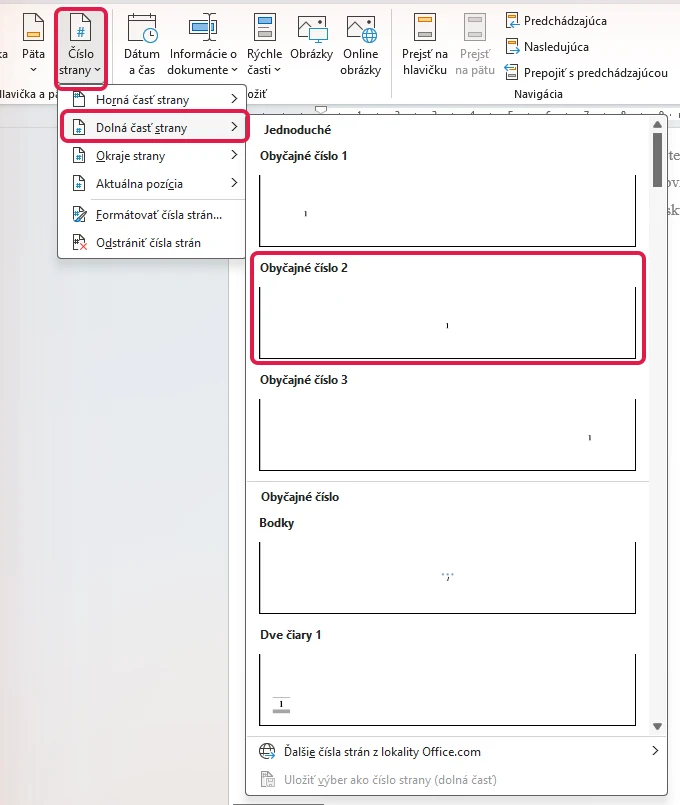
A number appears on the Introduction page. Word keeps counting from the title page, so if the Introduction is the fourth page of the document, you will see the number 4. Some guidelines want exactly this; many others want the Introduction to start at 1, which the next section covers. When you are done, close the footer with the Close Header and Footer button or by double-clicking the body text.
The result: the table of contents and every page before the Introduction has no number, the Introduction shows 4, and the numbering continues to the end of the thesis.
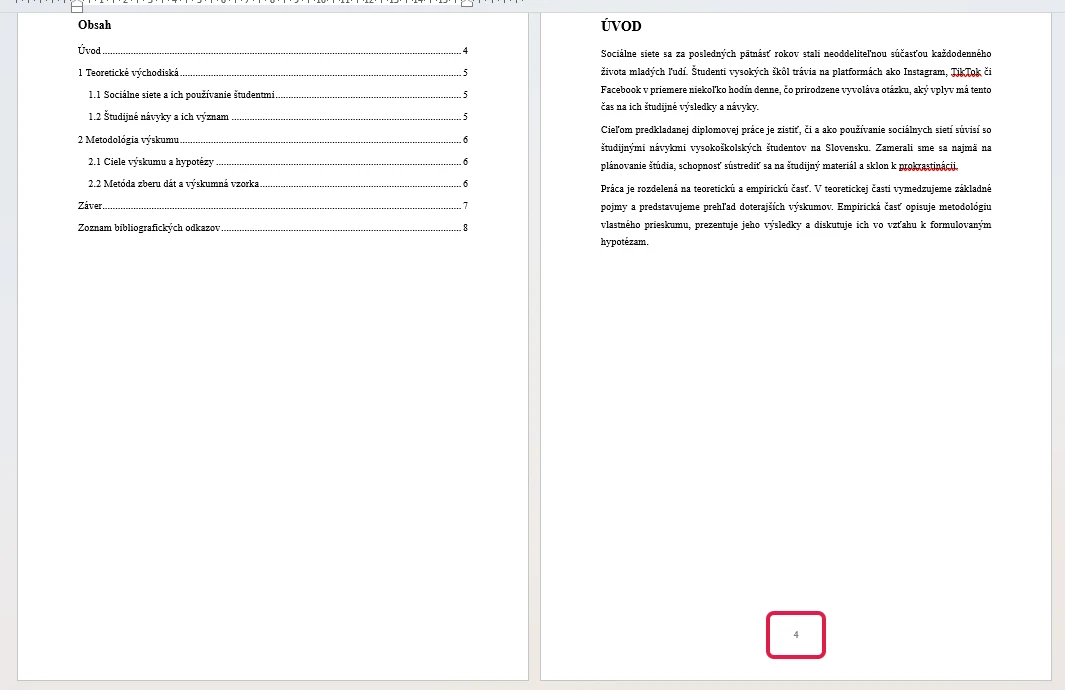
If your thesis already had page numbers and you need to remove them from the front matter, the method is the same. After unlinking, click into the footer of one of the front pages, select the number and delete it with the Delete key. It disappears only in the first section and stays from the Introduction onwards.
Want page 1 on the Introduction instead of 4? Use Start at
At many English-speaking universities this is not the exception but the standard requirement: the front matter carries no visible numbers (or lowercase Roman numerals, see the FAQ below), and Arabic numbering begins at 1 on the first page of the Introduction. If your thesis guidelines say the Introduction is page 1, here is the switch.
Click into the footer of the Introduction, open Page Number on the Header & Footer tab and choose Format Page Numbers. At the bottom of the Page Number Format dialog you will find the Page numbering section with two radio buttons.
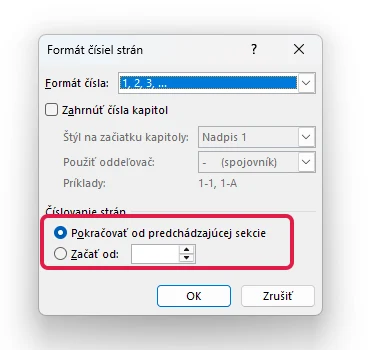
Continue from previous section is the default: pages are counted from the title page, and the Introduction gets its true position in the document. Switch to Start at and enter 1, and the Introduction becomes page 1 no matter how many pages sit before it.
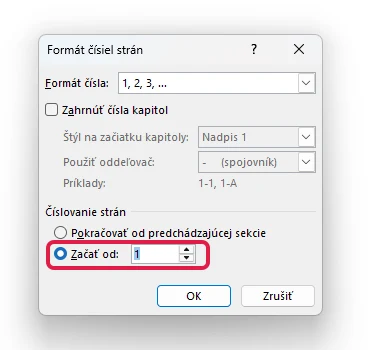
The same dialog also helps whenever the numbering has to begin with a different number, for instance when a long thesis is split across several files.
The quicker option: hide the number on the title page only
If you only need to hide the number on the very first page of the document, and numbering can run normally from page two, you can skip the section break. Double-click the footer and tick the Different First Page checkbox on the Header & Footer tab. The number vanishes from the title page and stays on all the other pages.

For a thesis with a separate abstract and table of contents this shortcut is usually not enough, because a number would already appear on page two. In that case, use the full method with the section break.
Common problems and how to fix them
A blank page appeared after inserting the break. The original manual page break is still in the document. Turn on ¶ on the Home tab, find the "Page Break" mark sitting right next to the "Section Break (Next Page)" mark and delete it.
The number showed up on the title page and in the table of contents too. You forgot to switch off Link to Previous before inserting the number. Click into the Introduction footer, unlink the sections, then delete the number in the first section's footer.
I deleted the number in the table of contents and it disappeared from the whole thesis. The same problem in reverse: the footers were still linked. Undo the step (Ctrl + Z), unlink the sections, and only then delete the number.
Numbering from the Introduction works, but my table of contents is now wrong. An automatically generated table of contents does not refresh itself after the numbering changes. Right-click the table and choose Update Field, then Update entire table if needed.
Formatting is where almost everyone struggles right before submission. If you would like help getting your thesis to match the guidelines, take a look at our thesis services.
Frequently asked questions
How do I start numbering on page 3 so it shows the number 3?
Click at the start of the third page, insert a Next Page section break, switch off Link to Previous in the footer of the third page and insert the page number. The default Continue from previous section setting makes sure the third page gets the number 3.
How do I start numbering on page 3 with the number 1?
Follow the same steps, then additionally open Page Number, choose Format Page Numbers and set Start at to 1.
Does the title page count toward the numbering?
With the default setting, yes. Word counts every page from the first one; the number simply is not displayed wherever the footer has no page number field. Whether the title page should count toward the visible numbering is a guideline question, so check yours. Keep in mind that the required length of a thesis is normally measured in words or characters rather than pages; more on that in our guide to thesis length and word count.
Can I number the front matter with Roman numerals?
Yes, and at English-speaking universities this is a very common convention: the front matter (title page, abstract, table of contents) is numbered i, ii, iii, and the main text starts at Arabic 1 on the Introduction. Once the document is split into sections, insert a page number into the first section's footer as well, open Format Page Numbers and pick i, ii, iii in the Number format field. Then click into the second section, keep Arabic numerals there and set Start at to 1. If the title page itself must show no numeral at all, hide it with the Different First Page checkbox in the first section.
Does this also work in Word for the web?
Only partially. Word for the web (the free browser version) cannot unlink footers between sections, so you cannot start numbering from a specific page there. Use the desktop version of Word, even if only for this one step.
Where should the page number be placed?
Most often in the footer, centered or at the outer margin. The binding answer is in your university's or department's thesis guidelines, along with the other layout rules we walk through in our guide on how to structure a thesis.